

2.4 Augmented Reality Mobile Applications Development
2.4.2 AR Mobile Applications User Guide (for Androids)
The User Guide outlines the steps required to download and install the AR mobile applications "Choirokoitia" and "Sandby Borg" on Android mobile devices like smartphones and tablets. Please look at the compatibility list included in the introduction of this section for the supported AR Android devices.
Please download the AR mobile applications following sections 2.4.2.1 for the Choirokoitia app and 2.4.2.2 for the Sandby Borg app, and then follow the steps listed below to install each app:
Installation procedure:
If the message notification "File might be harmful" appears when pressing the "Download" button, please choose "Download anyway".
Please choose "Open." If any permissions need to be enabled, allow them for the specific browser you are using to download the file, e.g. "Google Chrome", and press the back arrow to return and start the installation. Otherwise, you may locate the downloaded app using a file manager application and open it.
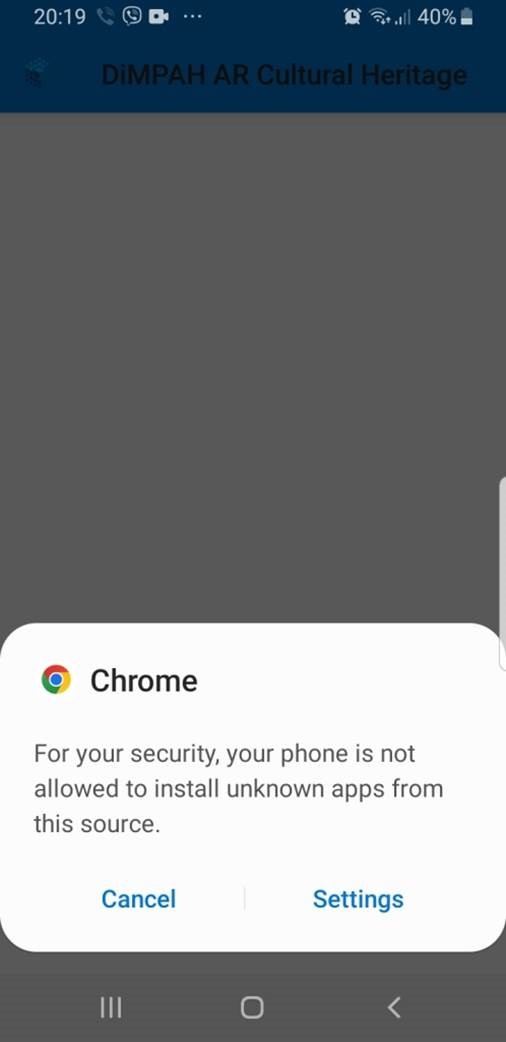
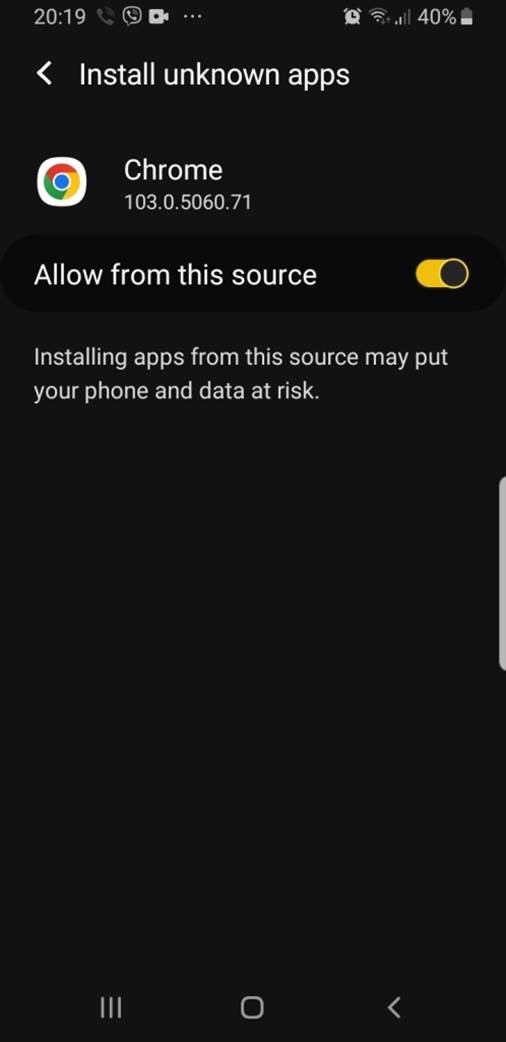
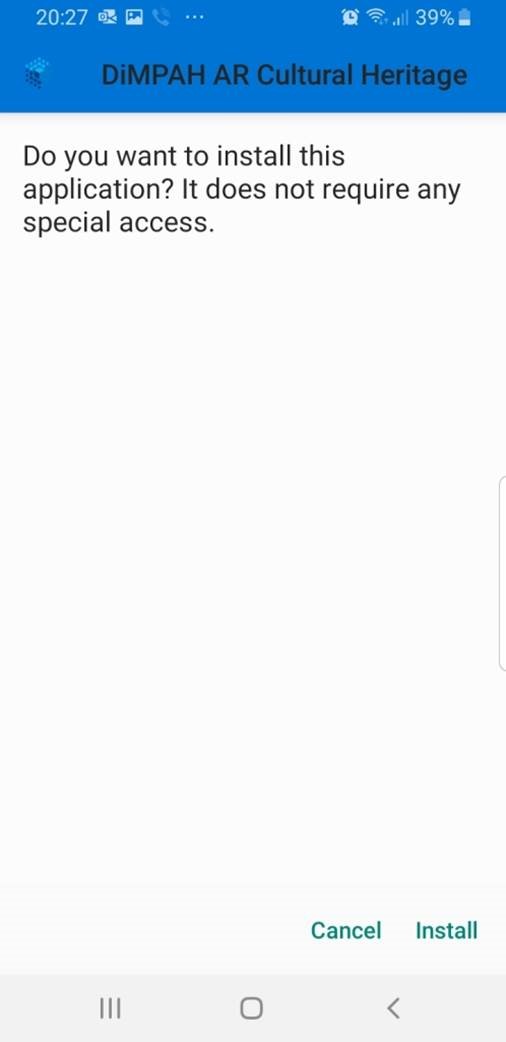
Android Applications Installation Procedure
Congratulations!
You can then open the installed app and follow the onscreen instructions on how to use the app and navigate appropriately through the scenarios.
The "Agreement Statement" needs to be accepted by scrolling to the end. This step is necessary to be able to proceed and use the apps.
Please consider that sufficient floor space/desk surface and lighting conditions are required, and the time for the scanning and detection process to map out the environment. This step by be achieved by slowly moving the mobile device in a circular motion, as indicated by the UI/UX elements. This procedure involves physical environment tracking and simultaneously, thus creating and placing as many point clouds (white dots) as possible to achieve a steady placement of the virtual elements in the surrounding environment.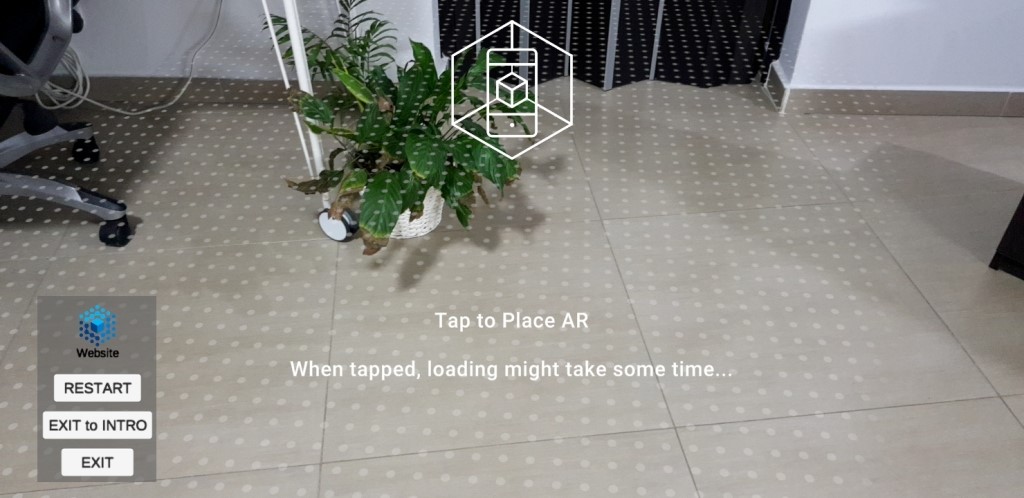
SLAM Scanning and Detection Process
When a similar appearance of point clouds is displayed on your screen, as in the above image, tap on them to place the virtual elements at that location/position, which will blend with your environment.
Points to note:
- Navigate around the scene; clues can be lighting sources and virtual objects.
- Actions are triggered when you are near virtual elements.
- If you need any guidance, please ask your instructor.
- You can check your knowledge by completing the "About AR Development" quiz.