

2.1. Presentation of the NewsEye Platform
2.1.5. Creating a dataset
Use-case: Women's suffrage
To demonstrate what was explained previously, we will search for documents on the theme of women's suffrage in the French part of the NewsEye corpus. We will make use of the metadata to try and make sense of this historical subject. Of course everything we will do can be adapted to other thematics and other languages.
Creating the dataset
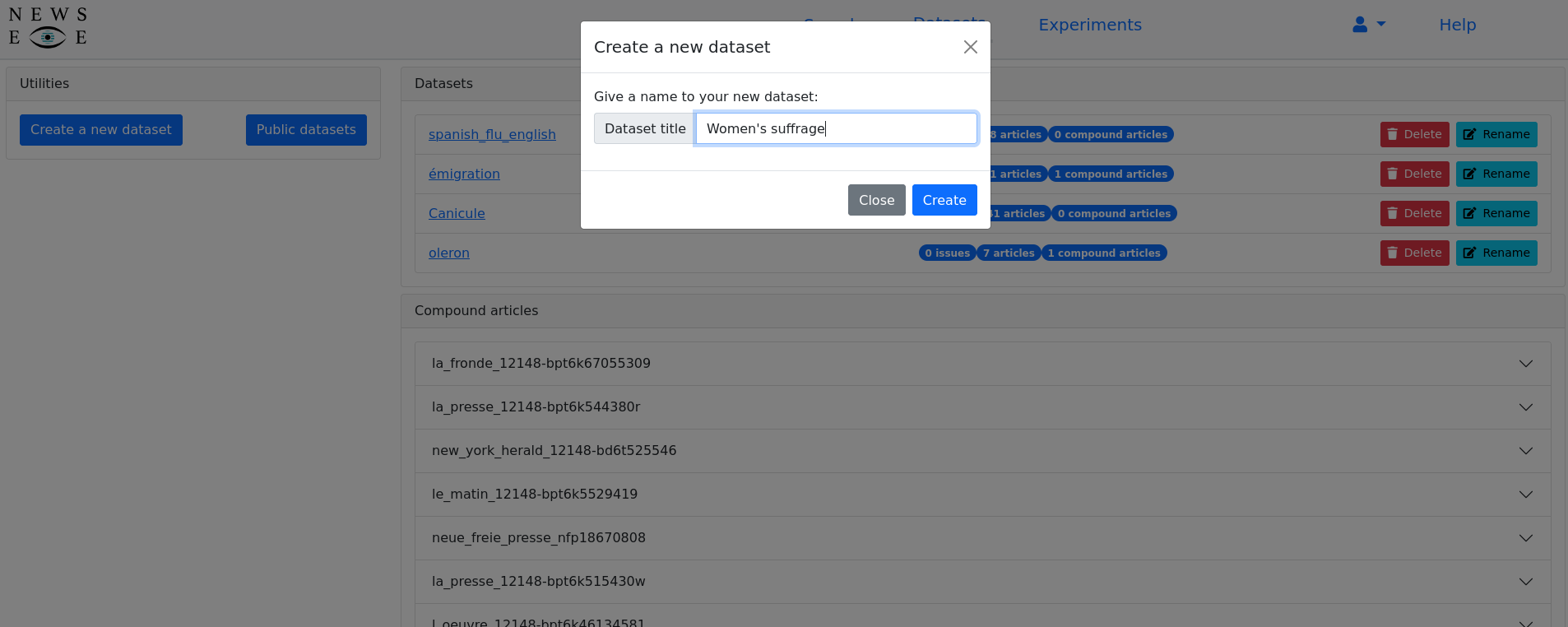
The first step is to create the dataset in which we will add articles that we found during our search. To do this, we click the "Datasets" link in the menu. From there, we click the button "Create a new dataset", we give it a name and validate.
Searching for relevant articles
To fill our previously created dataset with documents relevant to the theme of women's suffrage, we need to make a search. To do this, click on the "Search" link in the menu. For this example, we will make an exact search and use the query `"vote femmes"~10`. This query will match documents containing the words "vote" and "femmes" (women in French) if they are separated by at most ten other words. This gives a little bit more tolerance for the documents that will be returned. For example, we will see documents containing "vote des femmes" (vote of women) as well as "vote pour les femmes" (vote for the women).
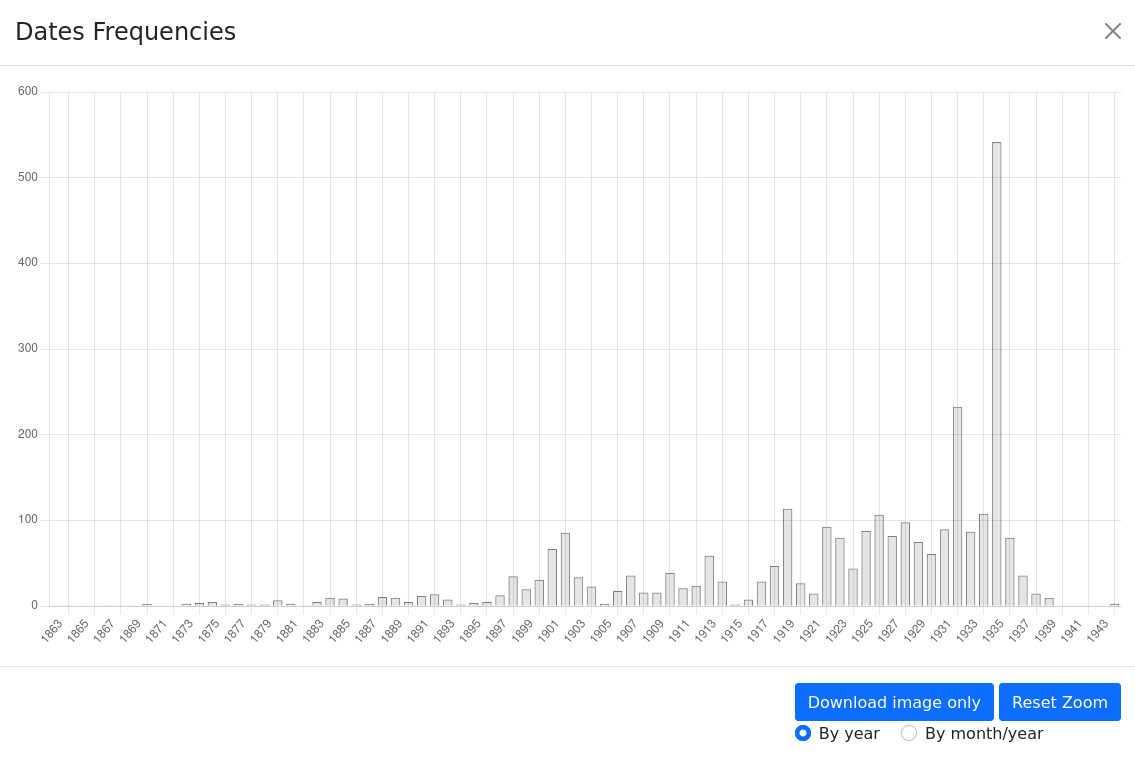
On the results page, the first we can observe is the date distributions of the returned documents. It so happens that women were given the right to vote in 1944 in France. We can see that this subject was more and more talked about in French newspapers (which makes sense from a historical point of view). But we have to be careful with this kind of statement. Indeed this distribution of dates could also very well be explained by the selection of the corpus. If most documents available are from this period, it makes sense to see this kind of distribution.
Another way to get a sense of the content of the returned documents is to take a look at the named entities in the returned documents. We can, for example, take a look at the "Persons" facet.
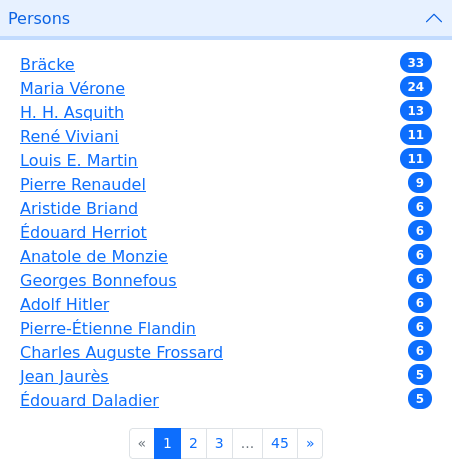
For example, H. H. Asquith was the prime minister of the United Kingdom between 1908 ad 1916. If we click on his name, the list of results will be updated to only show documents that mention him. After checking these documents, we can observe that Asquith was strongly opposed to the right to vote for women and was often confronted with suffragettes (activist women for the right to vote in the United Kingdom).
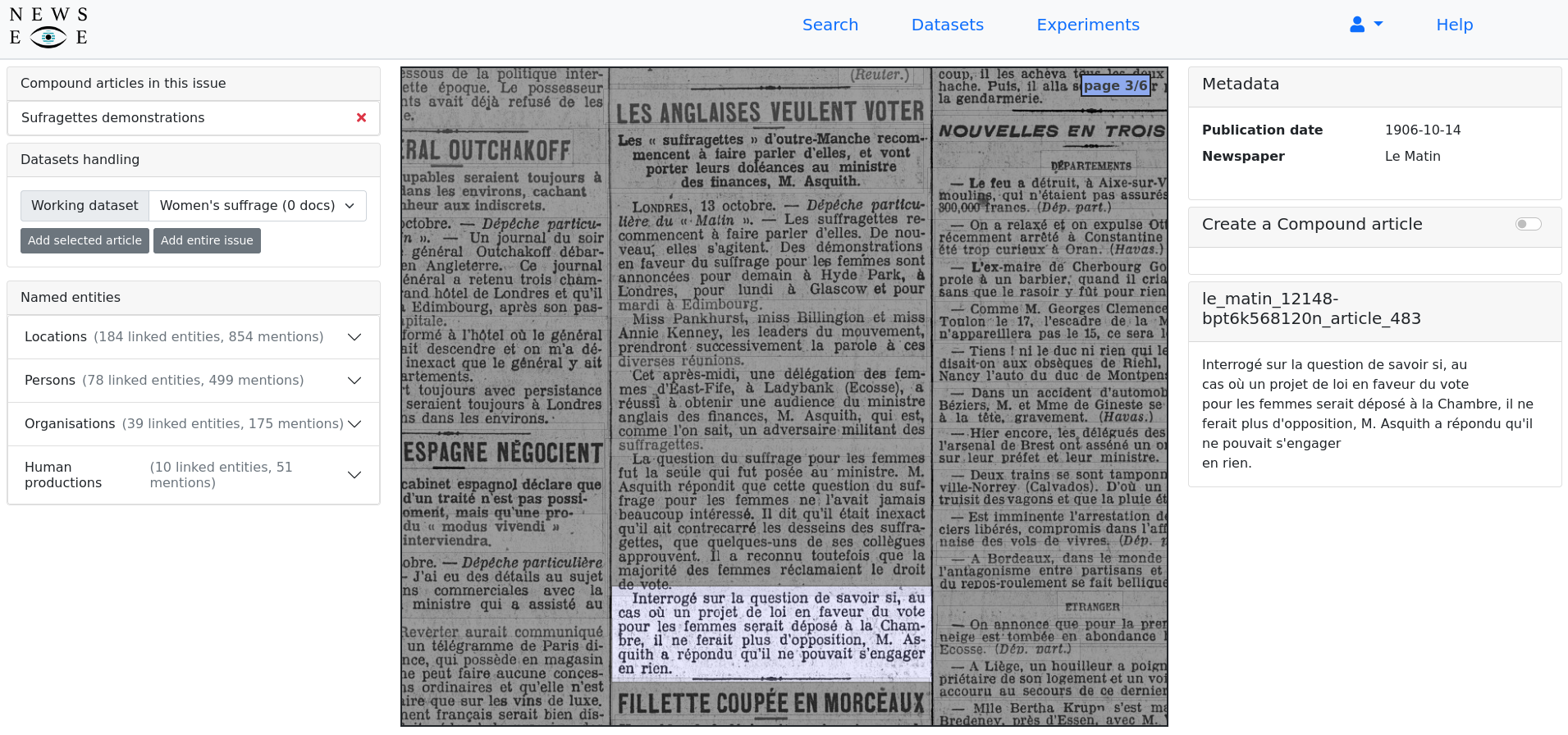
We can observe that most of the returned articles are actually only parts of the article. This is because of the article separation step in the processing of documents before they can be available through the platform. To compensate for this, we are going to build a compound article to reconstruct the article from the newspaper. To do so, let's activate the compound article mode by clicking on the button.
Using Compound mode
Once this is done, you can start composing the article by selecting the various parts.
- After clicking a block of text, it will be highlighted, and a new item will be added to the compound article.
- You can change the order of the items in the compound article if necessary.
- When you are done, you can click the "Crete" button. A pop-up will appear with the text of the compound article you just created. After giving it a title, you can validate the creation of the article.
- It will now appear in the top-left part of the window. When you click on it, all its parts will be highlighted in the viewer. You can also notice a new button under your working dataset, allowing you to add this compound article to your dataset.
Another way of adding a large number of articles to a dataset is from the search page. If we go back to the first search we made, there was a total of 2884 results. We can add all these documents to our dataset using the "Add all documents" button. This can take a bit of time, but you can continue browsing the platform, as you will be notified when the operation succeeds.
Creating a dataset is an iterative process where several queries are usually necessary to identify as many relevant documents as possible. To create a more complete dataset, we would need to start the search process again with new queries like "right of vote". These would give similar results that could very well be very important for a future study. We'll stop here for now and will now export our dataset in JSON format. This way, we'll be able to explore and analyse it with various tools. To do so, let's click on the "Datasets" link in the menu and then on the dataset we just created.
We can see that all documents from the search were added to it, as well as a compound article, the one we created earlier. We click on the "Export" button and select the JSON format. After a while, a download link will appear, and we can click it to download the JSON file.